

Command Center: find it or do it in one step
Section titled “Command Center: find it or do it in one step”From any page, press Cmd/Ctrl + K (or /), or click the new search box in the top bar. Type what you want to find or do and get there in one step. Search across projects, tasks, invoices, estimates and vendors, or run a command such as create a task, project, invoice or estimate, add a vendor, open automations or connect apps. Results follow your permissions and stay within your organization, and recent items show when the box is empty.
How it works
Section titled “How it works”- Press
Cmd/Ctrl + Kon any page, press/to see the available commands, or click the search box in the top bar. - Type what you want, for example “create” or “invoice”. Use the filters to narrow the results to Projects, Tasks, Invoices, Estimates or Vendors.
- Move with the arrow keys, press
Enterto open the result or run the command, andEscto close.
The vendor portal and client side get the same search, showing only the filters that apply to them.
Edit common fields right from the list
Section titled “Edit common fields right from the list”Common fields can now be edited straight from your lists, and they work the same way everywhere. Hover over a field and look for “Click to edit”, then make your change without opening the record. Click a project’s status to pick a new one from the dropdown (Request, To Do, In Progress, Done or Archived), or click the description to write it in a pop-up editor with formatting. Owner stays protected and is not editable inline.
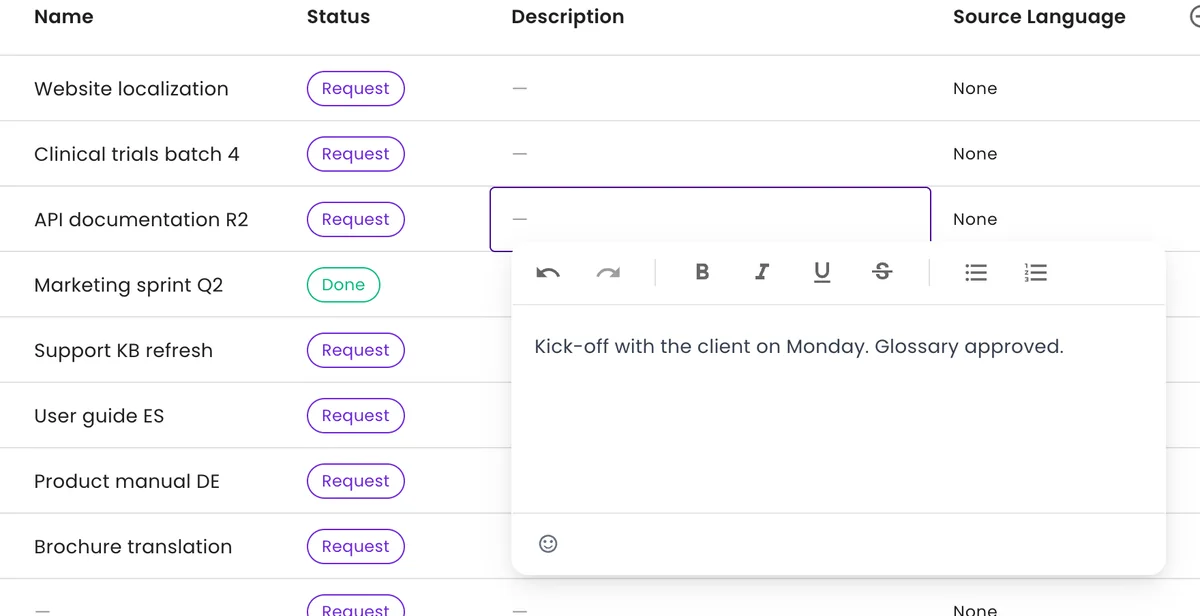
Click a description to write it in a pop-up editor, right in the list.
A smoother start for new organizations
Section titled “A smoother start for new organizations”Company details can be filled in automatically from a website lookup, and you can add your logo (PNG, JPG or SVG, up to 2 MB) and business address during setup. Each onboarding step is saved in the background, and a new Back button lets you return and check earlier details.
Every new organization is now fully set up on the first go, or repaired at your next login. Checkout works straight after the contact step, and add-ons can be included in the order summary.
A brand-new organization sees example data on Home until its own data arrives, so the page never starts empty.
20+ file formats in the editor
Section titled “20+ file formats in the editor”The editor now supports more than 20 file formats, so more of your clients’ files can be opened and translated directly. New formats are handled through Okapi, along with a new PDF handler. Here is the full list:
- Documents: DOCX, ODT, PDF, TXT, HTML, MD / Markdown
- Spreadsheets and data: XLSX / XLS, CSV, TSV, JSON, XML, YAML / YML
- Presentations and diagrams: PPTX, VSDX / VSDM
- Localization files: XLIFF / XLF, PO, TMX, TS, DTD
- Design: IDML
Enhancements
Section titled “Enhancements”Faster and more consistent screens
Section titled “Faster and more consistent screens”- The project dropdown in Create New Task loads much faster.
- The “Click to edit” tooltip now appears where it should, including in Tasks, and no longer overlaps the Create New Project window. The inline edit window for a project’s name and description now matches the design.
- The Spaces section on Home shows the standard loading indicator instead of plain text, and the automation task overview is properly aligned.
Tasks and files
Section titled “Tasks and files”- Creating a task from the Projects or Tasks section works again instead of failing with an error.
- A file you upload now appears in the Task Files tab of the task.
- The list of supported files is corrected in projects and in the editor.
- After a PowerPoint file fails segmentation, you no longer also see a success message.
- Clicking Done in file analysis now saves the analysis.
Estimates and projects
Section titled “Estimates and projects”- Opening an estimate no longer shows an empty template followed by an error page.
- Project Overview shows the owner, or Unassigned.
- Clicking a task’s owner opens their profile.
- Creating a project now confirms what was created, by name.
Command Center and tables
Section titled “Command Center and tables”- Searching for “Rates” now finds company and vendor rates and related commands, not only Settings.
- The “Connect apps – Explore” command is hidden from the command palette.