

Timesheet
Where: Apps › Timesheet
Timesheet records how long work actually took. Entries attach to tasks, which is what lets you compare time spent against what a job was priced at.
Timesheet. Hours appear per task per day, with a running total in the final column.
- Select Log Time at the top of the page.
- Choose the task the time belongs to.
- Enter the hours and the date.
- Mark whether the time is billable, then save. Use the Billable status filter later to separate chargeable from internal time.
The section panel also holds Time Entries for the raw list, and Approvals for timesheets awaiting sign-off. Who signs them off is configured under Timesheet approvers.
Time entries and approvals
Section titled “Time entries and approvals”Where: Apps › Timesheet › Time Entries and Approvals
The main Timesheet view groups hours by task. These two pages give you the raw records and the sign-off queue.
Time Entries. Every logged entry with the project and task it belongs to. Filter by date range, resource, billable status or tag.
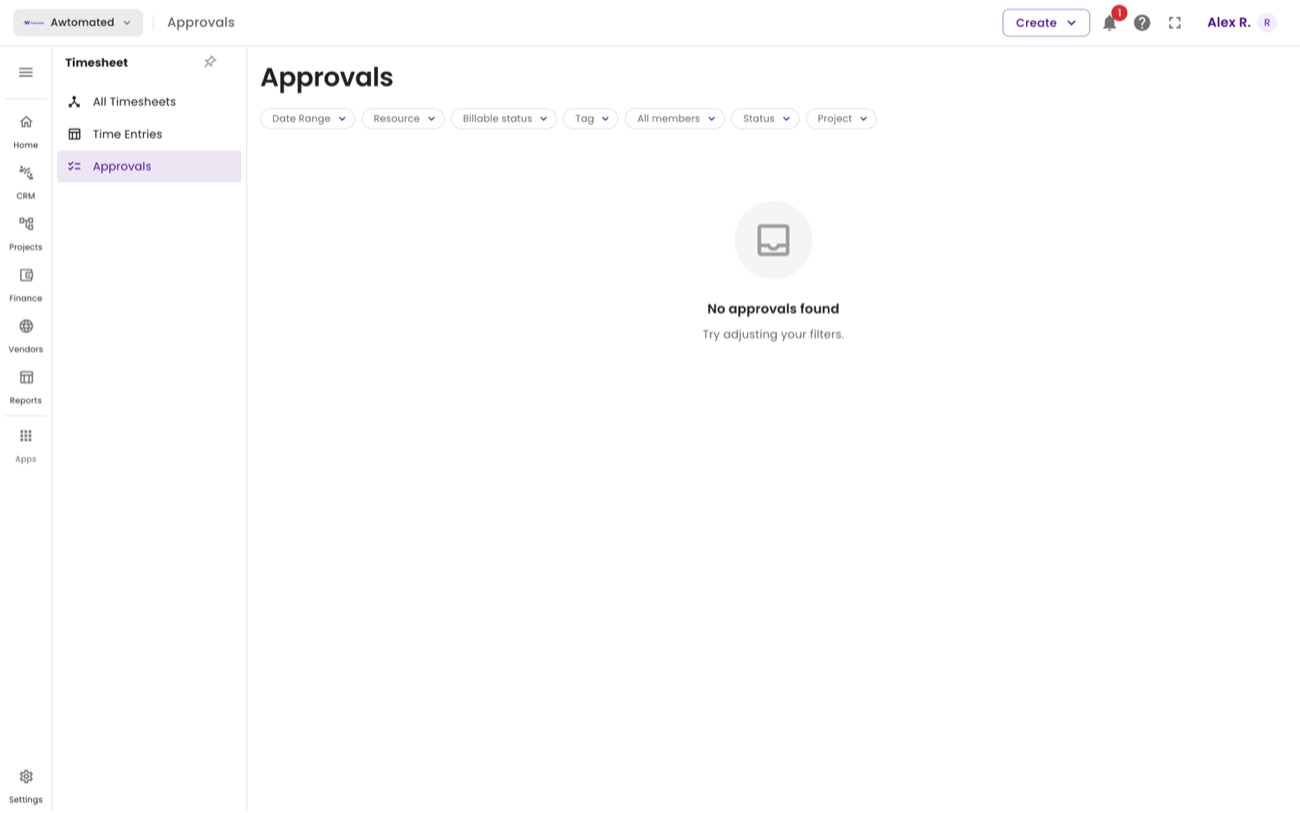
Approvals. Submitted timesheets waiting for sign-off. Who approves them is set under Timesheet approvers.
Related: Time entries & approvals · Timesheet approvers