

Team and roles
Where: Settings › User Management › Team
Your own staff - the people who hold a licence and sign in to run the business. Vendors are managed separately under Vendors.
Team. Users who hold no licence show as Inactive with an Activate action.
Inviting a team member
Section titled “Inviting a team member”- Go to Settings › User Management › Team and select Invite User.
- Enter their first and last name. Last name is required here.
- Enter their work email address - this becomes their sign-in.
- Select Submit. They receive an
AUSID and appear under Invitations until they accept.
Inviting a user. Assign their role once they appear in the Team list.
Pending invitations are listed under Invitations, where Reinvite user resends one that was missed.
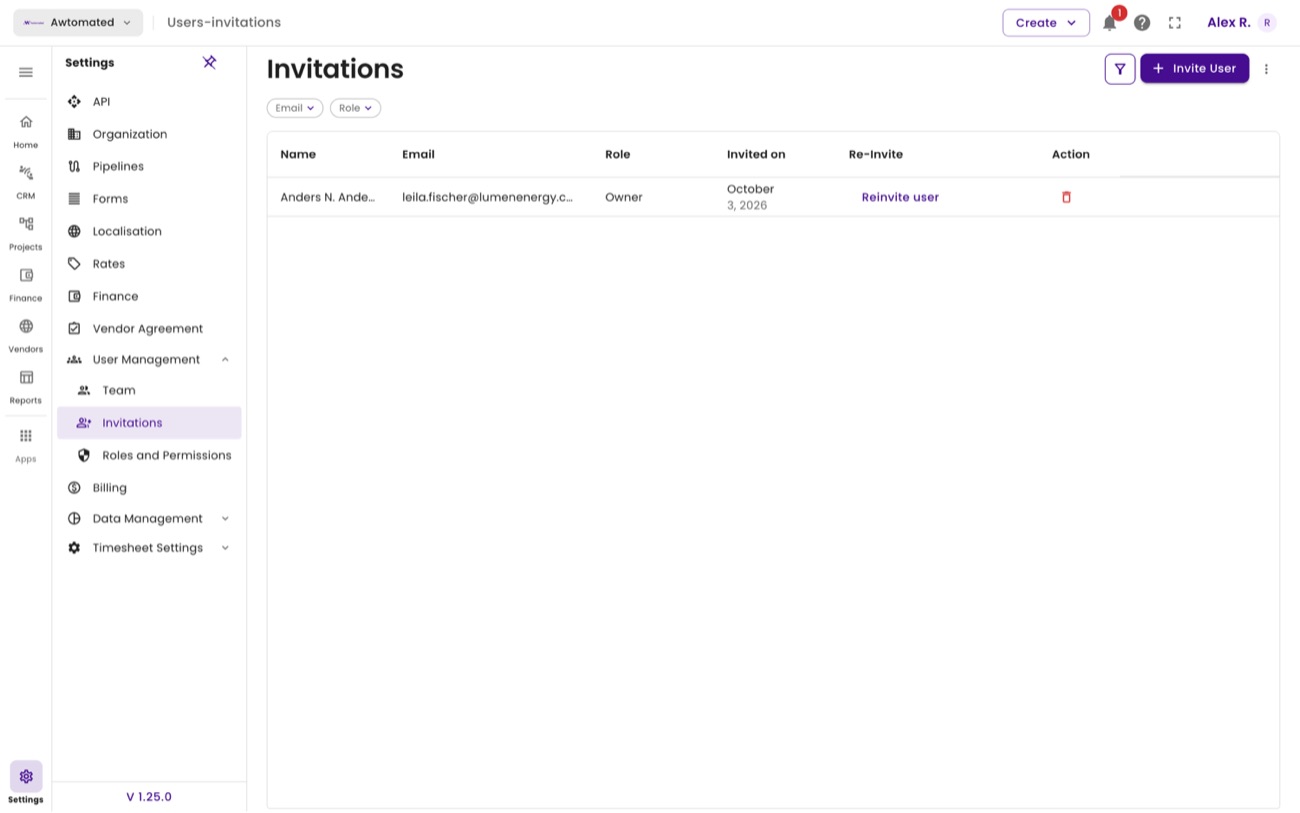
Pending user invitations, showing the role each person was invited as.
Roles and permissions
Section titled “Roles and permissions”Roles decide what each person can see and change. Permissions are granted per area as Read, Write or Only me, which restricts a user to their own records.
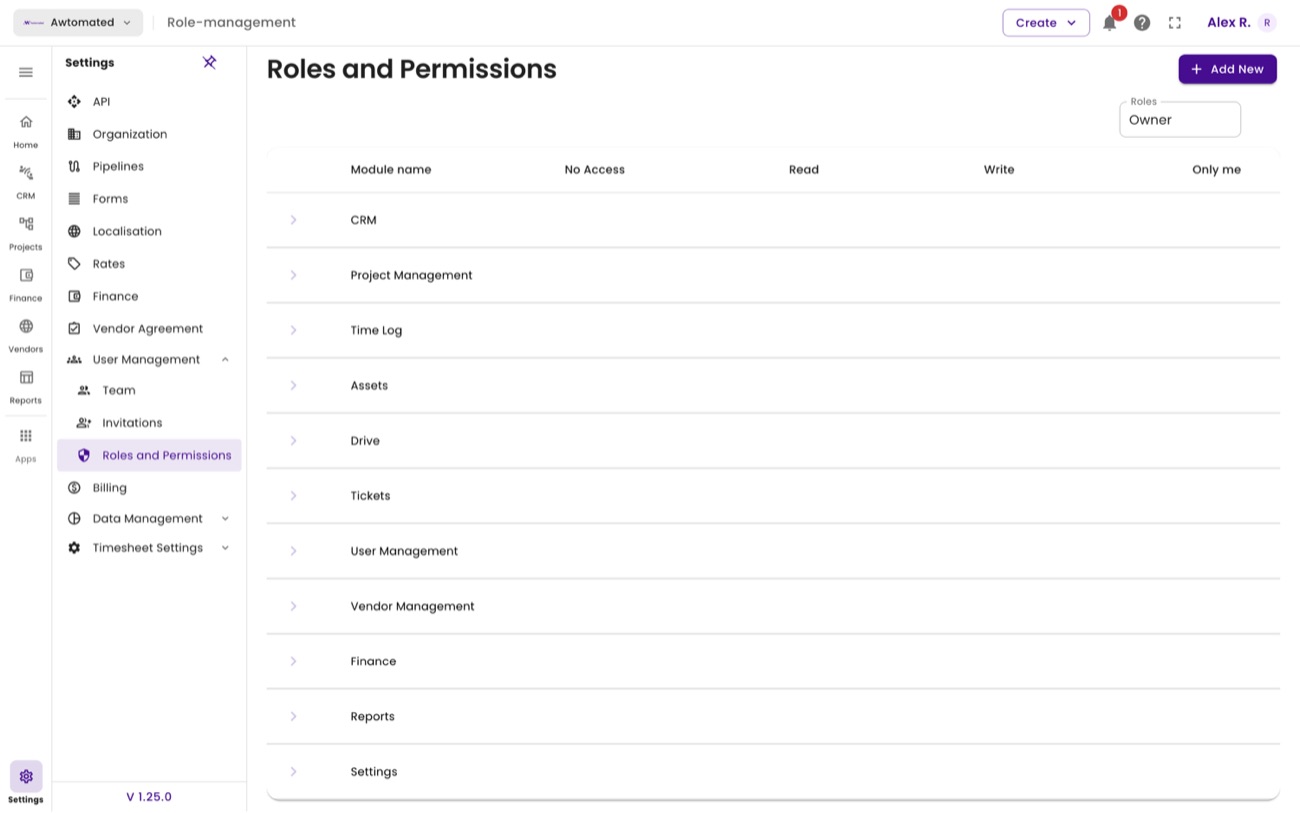
Roles and permissions. Create a role with Add New, then set its access area by area.
Related: Organization · Billing