

What your linguist sees
Vendors sign in at the same address and get their own view, built around the work they have been offered and the money they are owed. Their rail carries Opportunity, Tasks, Tickets, Finance and Settings.
The vendor’s first screen. Offers show the budget and unit count up front, so a linguist can decide without messaging you.
Opportunities
Section titled “Opportunities”Where: Vendor portal › Opportunity
Task offers awaiting a decision. This is the vendor side of the Task Invitation figure on your dashboard.
| Column | Meaning |
|---|---|
| ID | The ATK task being offered. |
| Source / Target Language | The pair, so a linguist can tell instantly whether it is their combination. |
| Deadline | When the work is due back to you. |
| Invited On | When you sent the offer - useful when chasing a slow response. |
| Unit Type / Total Unit | How the job is measured and how much of it there is, for example Per Word and 1000 Words. |
| Budget | What you are offering to pay for the task. |
| Status | Accepted once they take it; Withdrawn if you pulled the offer. |
Where: Vendor portal › Tasks
Work the vendor has accepted and is expected to deliver - the same ATK records you see in Projects › Tasks, filtered to theirs.
Vendor tasks. Task names carry the service, target language and parent project, exactly as they do on your side.
Tickets
Section titled “Tickets”Where: Vendor portal › Tickets
Conversations tied to the work. Keeping queries here rather than in email means the discussion stays attached to the task for whoever picks it up next.
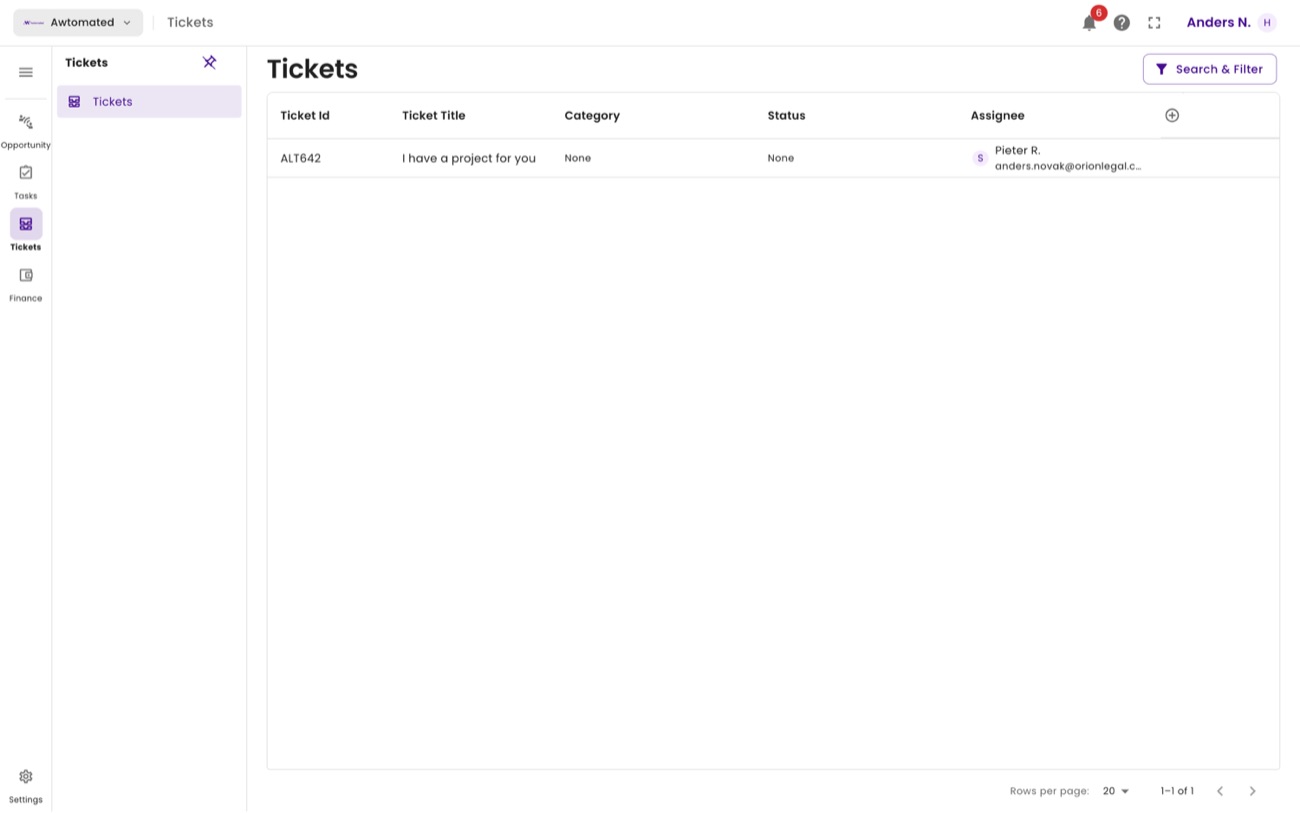
Vendor tickets carry an ALT ID, the participants, and a message count.
Purchase orders, invoices and payments
Section titled “Purchase orders, invoices and payments”Where: Vendor portal › Finance
The vendor’s Finance area has three pages, and together they are how a linguist gets paid.
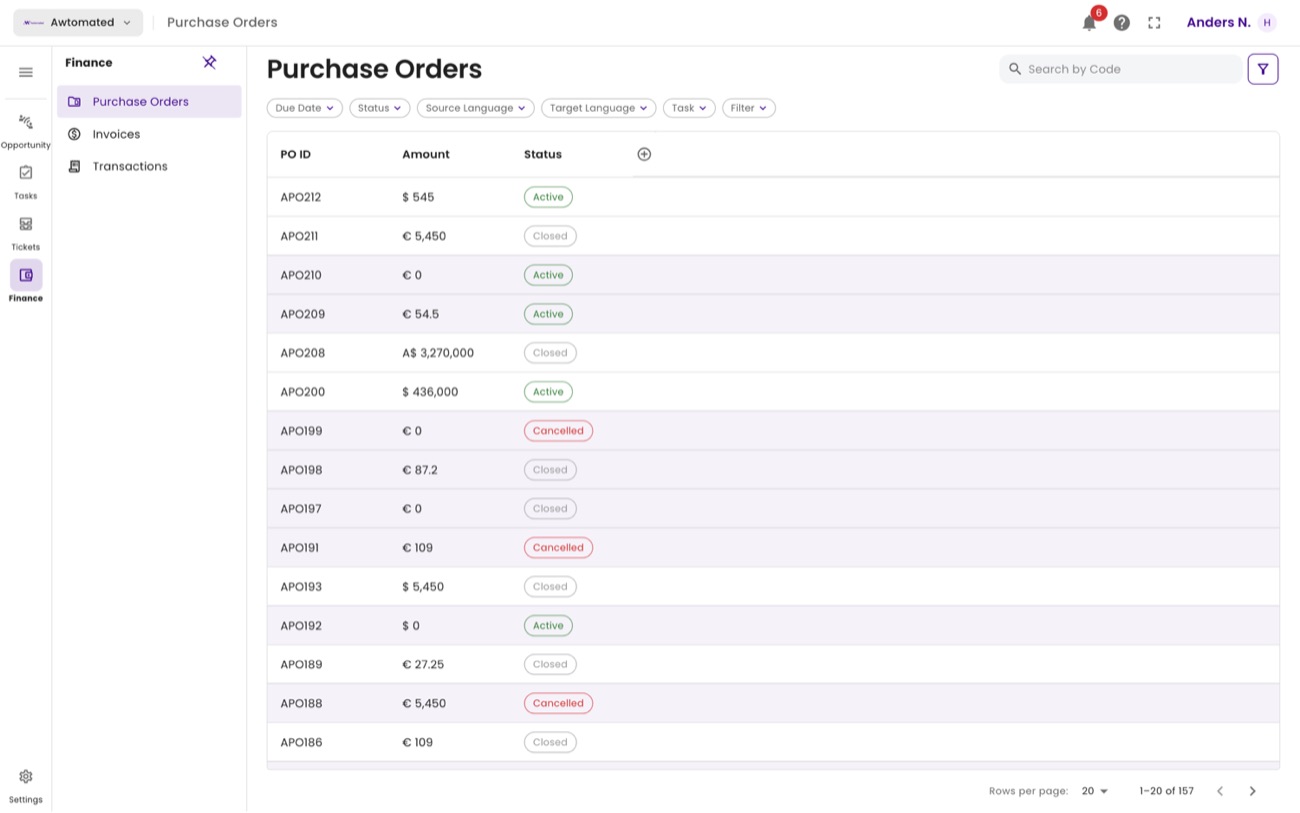
Purchase orders as the vendor sees them - with the tax rate and language pair shown alongside the amount.
- The vendor checks their purchase orders. Each
APOorder names the task it covers, the amount, the tax applied and whether a payout has been raised against it. - They select Generate invoice on the Invoices page to bill you for completed orders.
- The invoice appears as a payout on your side, under Finance › Payouts, carrying an
ABIID. - You pay and record the transaction. Once matched, the status changes on both sides.
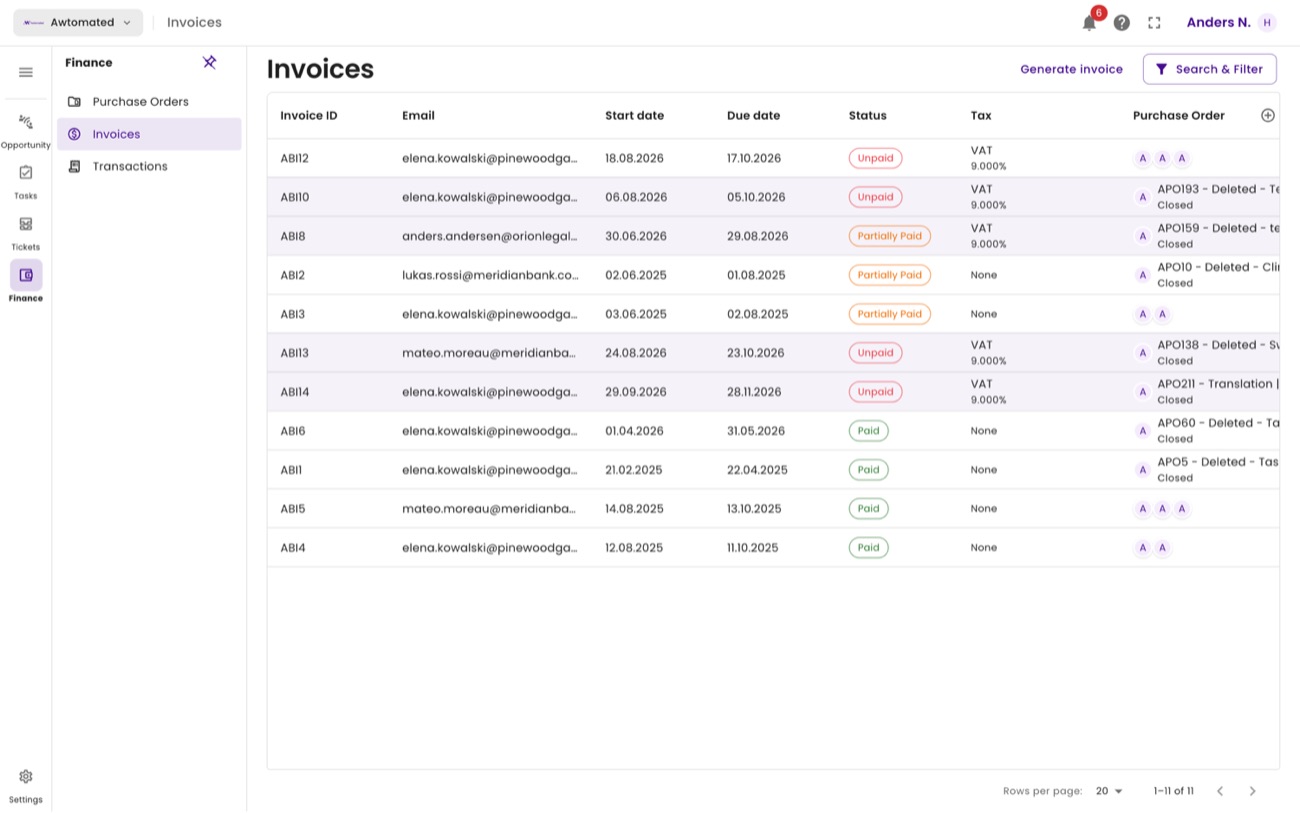
Vendor invoices. Generate invoice is the vendor’s billing route - whether it is available depends on your payout settings.
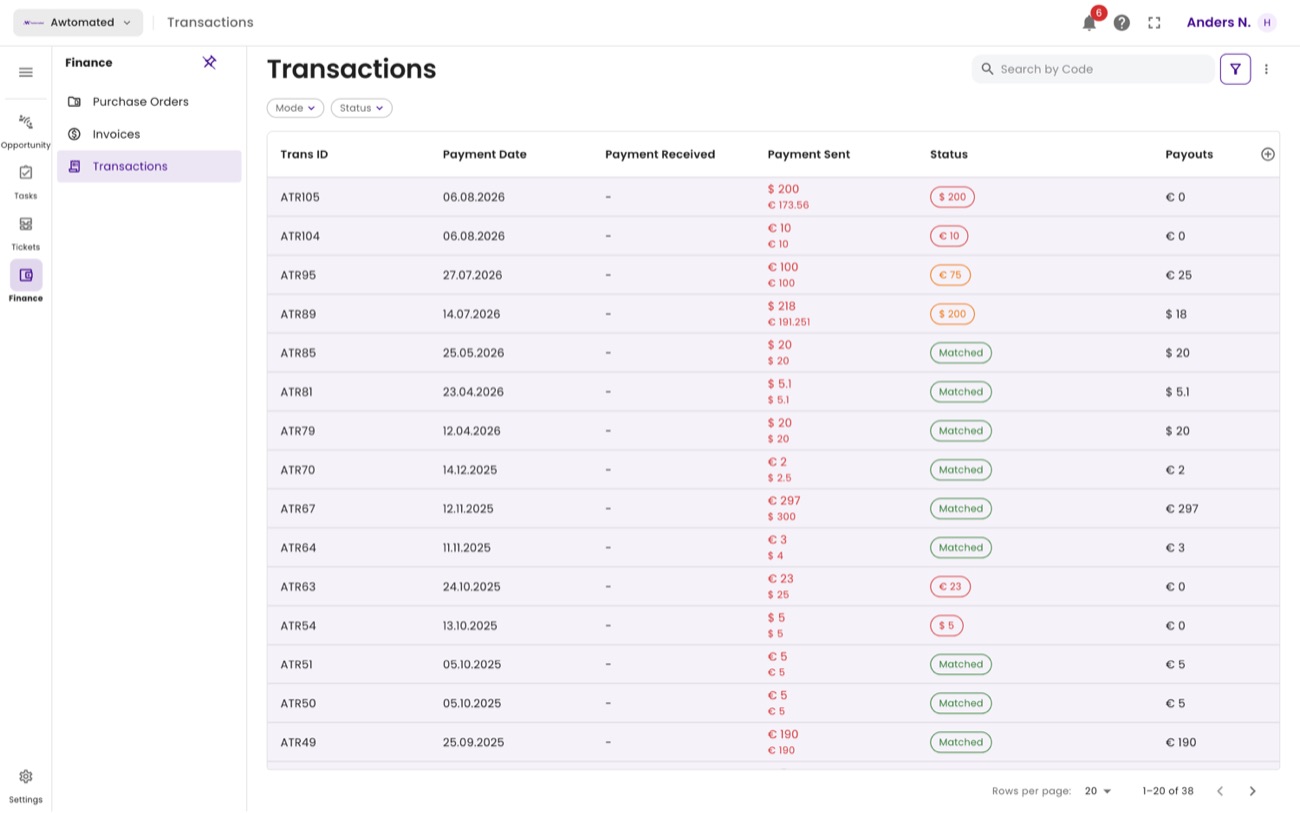
Vendor transactions. Payments you have made, with mode and bank reference, so vendors can reconcile against their own records.
How a vendor invoices you, step by step
Section titled “How a vendor invoices you, step by step”Vendors do not invoice per task. They pick the purchase orders they want to bill for - often several at once - and Awtomated produces one invoice covering all of them.
- The vendor opens Finance › Invoices in their portal, which lists the invoices they have already raised.
- They select Generate invoice. A Purchase Orders window opens listing every order available to bill.
- They tick the orders to include. Each row shows the code, status, start and end dates, amount and the task it covers. View opens an order to check it first.
- They can tick several. The checkbox in the header row selects every order at once - the usual choice at month end.
- They select Submit. One invoice is created covering all the selected orders, with an
ABIID. - It arrives on your side under Finance › Payouts, ready for you to pay and match.
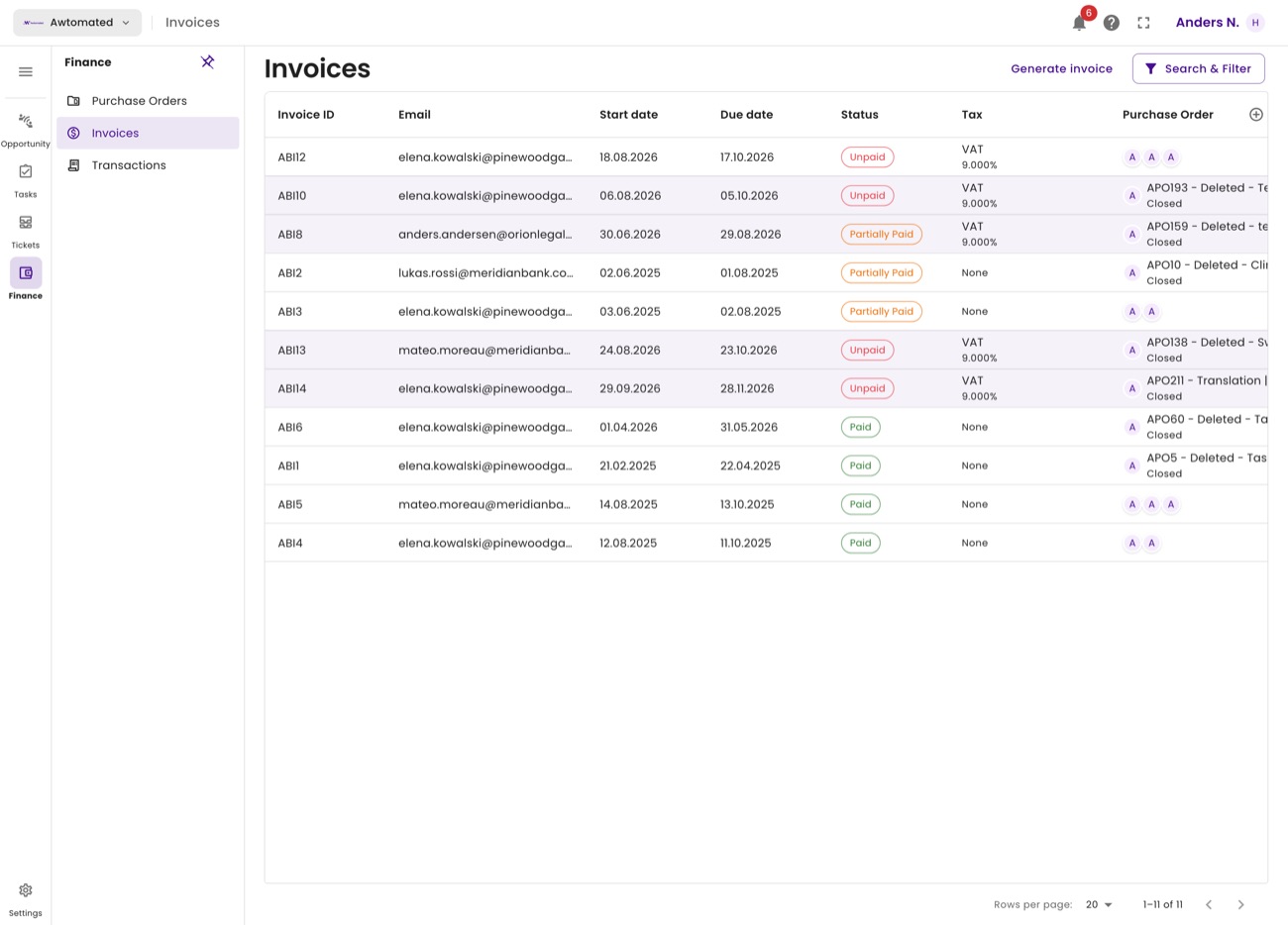
Step 1. The vendor’s own invoice history, with Generate invoice above it.
Step 2. Every purchase order available to invoice, each with its amount and the task it paid for.
Step 3. When two orders are ticked, both are billed on a single invoice rather than one each.
Profile and rates
Section titled “Profile and rates”Where: Vendor portal › Settings
Vendors maintain their own details and their own price list, which removes a whole category of admin from your team.
Vendor profile. Vendor Editable controls whether the linguist may change these details themselves.
The profile holds name, email, phone, address, country, state, time zone and a description, plus professional details such as work experience. A Logs tab records what changed and when.
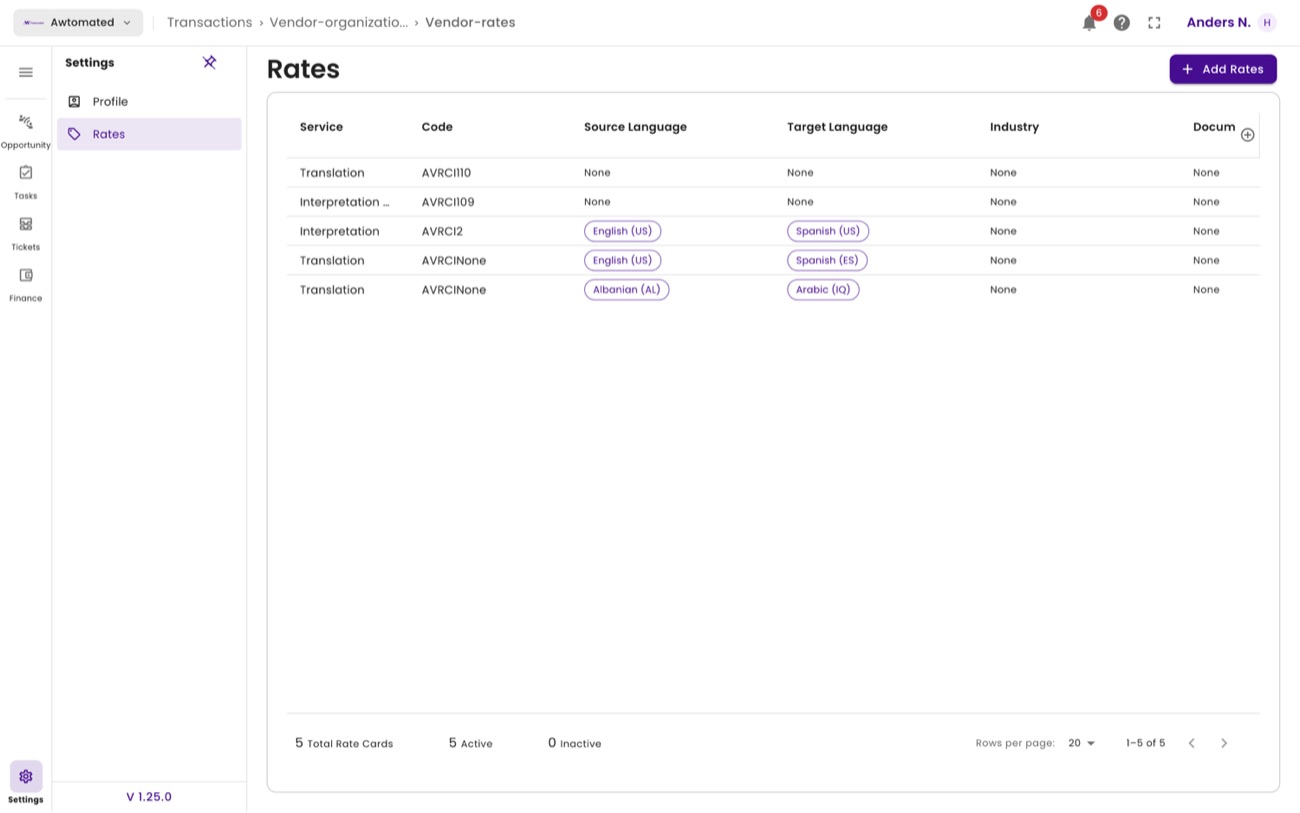
Vendor rates carry an AVRCI code - the vendor’s own prices, separate from the ARCI rates you charge clients.
Related: The vendor record · How a vendor invoices you · Purchase orders