

The project record
Where: Projects › Projects › select a project
The project record is where a job is actually run. Five tabs are shown to begin with - Overview, Tasks, Files, Finance and Notes - and another five can be switched on when you need them. The sections below cover all of them; if a tab is missing from your record, Add to Tab turns it on.
Project overview. Duration is derived from the start and end dates rather than entered.
| Field | Meaning |
|---|---|
| Project Name / Description | What the job is. The description is what a project manager reads when staffing it. |
| Start / End Date, Duration | The delivery window, shown with its time zone. Duration is calculated for you. |
| Location | Used for on-site work such as interpreting. |
| Status, Tasks Progress | Where the job stands and how far its tasks have got. |
| Source / Target Language | The pair being delivered. |
| Project Workflow | The stage sequence taken from the service, for example Translation or Machine Translation. |
| Share with contact | Yes or No - whether this project appears in your client’s portal. |
Choosing which tabs a record shows
Section titled “Choosing which tabs a record shows”Project and task records let you decide which tabs appear. Five are on out of the box - Overview, Tasks, Files, Finance and Notes - and the rest are there when you want them.
- Open a project or task and look at the end of the tab row.
- Select + Add to Tab. A checklist opens showing every tab available for that record.
- Tick the ones you want. They appear in the tab row straight away; unticking removes the tab without touching anything stored in it.
Add to Tab. Ticked tabs show in the row; unticked ones stay out of the way until you need them.
| Tab | Default | Turn it on when |
|---|---|---|
| Overview | On | Always - it is the record itself. |
| Tasks | On | Projects only. The work underneath this job. |
| Files | On | Source documents, completed files and word count analyses. |
| Finance | On | Line items and pricing. |
| Notes | On | Internal notes, never visible in either portal. |
| Drive | Off | You attach reference material - style guides, glossaries - to this specific job. |
| Assets | Off | You link term bases or translation memories to the project. |
| Links | Off | You want the connected records visible without leaving the job. |
| Activities | Off | You need the audit trail - who changed what, and when. |
| Time Log | Off | You track hours against this job as well as its cost. |
Creating a task from inside a project
Section titled “Creating a task from inside a project”The project header carries a Create a Task button. It is quicker than going out to the task list and linking back, because the new task is attached to this project from the start.
- Open the project the task belongs to.
- Select Create a Task at the top right.
- Choose the service, exactly as when creating a project - the task form loads to match it.
- Fill in the fields and save. The task takes an
ATKID and appears on the project’s Tasks tab.
Files and word count analysis
Section titled “Files and word count analysis”Where: Project record › Files
This is where source documents arrive, where finished translations are returned, and where Awtomated counts the words that pricing depends on. The tab is split into three lists.
Project files. Three separate lists: source files, completed files, and the analysis reports generated from them.
| List | What goes in it | Controls |
|---|---|---|
| Project Files | The source documents your client supplied. | Upload, Analyse, Download |
| Completed Files | Finished translations coming back from your linguists. | Add files, Upload |
| Word Count Analysis Files | The reports Awtomated produces when it analyses the source files. | Upload Analysis Files, Delete |
Running a file analysis
Section titled “Running a file analysis”- Open the project and select the Files tab.
- Upload the source documents into Project Files using Upload. The file name and size are listed once they arrive.
- Select the files you want counted, then choose Analyse. With nothing selected the control offers Analyse All instead.
- Wait for the report. Awtomated produces a word count analysis and files it under Word Count Analysis Files, named like
awtomated_analysis_report_1. - Use the counts to price the job. Move to the Finance tab and build line items against those quantities.
- Return the finished work by uploading it to Completed Files when your linguist delivers.
Preparing a file for the editor
Section titled “Preparing a file for the editor”Where: Project record › Files › select a file › Create Editor File
Before a file can be worked on in the editor it has to be converted into an editor file: the source is split into segments and each target language gets its own column to translate into.
- Open the project and go to its Files tab.
- Select the file card. A panel opens showing the file’s title, name, size, who added it and when, its type, and its Document Type and Document Tone.
- Select Create Editor File. The other buttons here are Edit for the file’s own details, plus Download and Remove.
- Tick the target languages you want editor files for. One file can produce several at once.
- Select Proceed with column mapping.
- Map the columns. Tell Awtomated which column in your spreadsheet holds what - the key, the source language, each target language. Add Row adds another mapping; Do not segment keeps a column’s content whole instead of splitting it into segments.
- Select Apply to build the editor file.
Step 2. The file panel. Create Editor File is the route into the editor.
Step 4. Target languages. Only languages active in Settings › Languages appear here.
Step 6. Column mapping. The column list is read from your file, so the names you see are your own headers.
The translation editor
Section titled “The translation editor”Where: Project record › Files › an editor file › Open in Editor
The editor is where translation actually happens: the document split into segments, the source on the left and a column for each target language beside it.
- Open the project and go to its Files tab.
- Select the converted file - its card carries an AMTD badge.
- Select Open in Editor in the panel that appears.
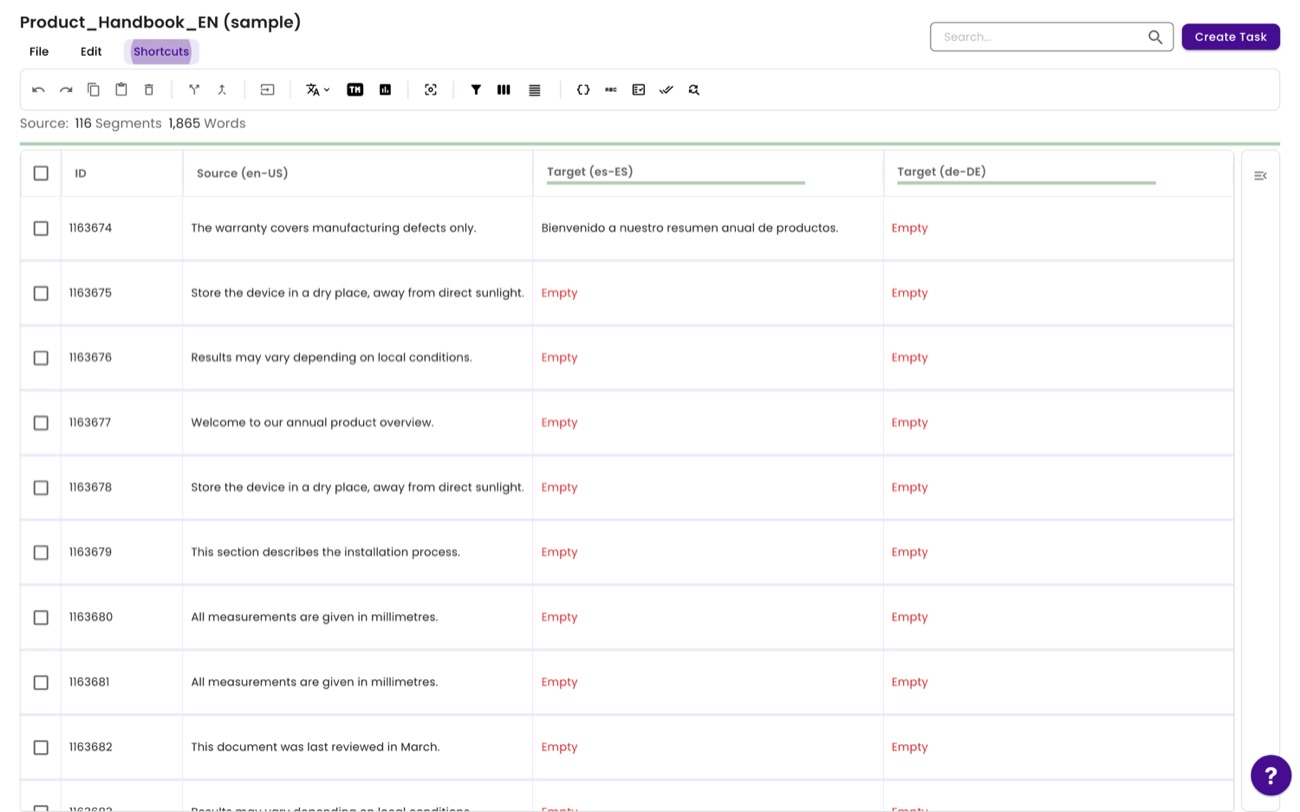
The editor. One row per segment, one column per target language. Untranslated segments read Empty in red, so unfinished work is obvious at a glance.
| Part of the screen | What it is |
|---|---|
| Segment count | Source: 116 Segments, 1,865 Words - the size of the job, and the figure your pricing should agree with. |
| ID | The segment’s permanent number. Quote it when querying a specific line with a linguist. |
| Source column | The original text, headed with its locale - Source (en-US). |
| Target columns | One per target language, headed Target (es-ES), Target (de-DE) and so on. All languages sit side by side in the same view. |
| Inline tags | Numbered chips inside a segment stand for formatting and placeholders carried over from the original. Keep them in the translation or the exported file loses its formatting. |
| Search | Finds text across every segment in the file. |
| Create Task | Raises a task straight from the editor, for when a file needs assigning while you are looking at it. |
The menus
Section titled “The menus”| Menu | Contains |
|---|---|
| File | Mark as Complete - signals the file is finished. Download Source File returns the original. Download as exports the translated file. |
| Edit | Undo · Redo · Cut · Copy · Paste · Delete. |
| Shortcuts | The keyboard reference - worth reading once, because segment work is far faster from the keyboard. |
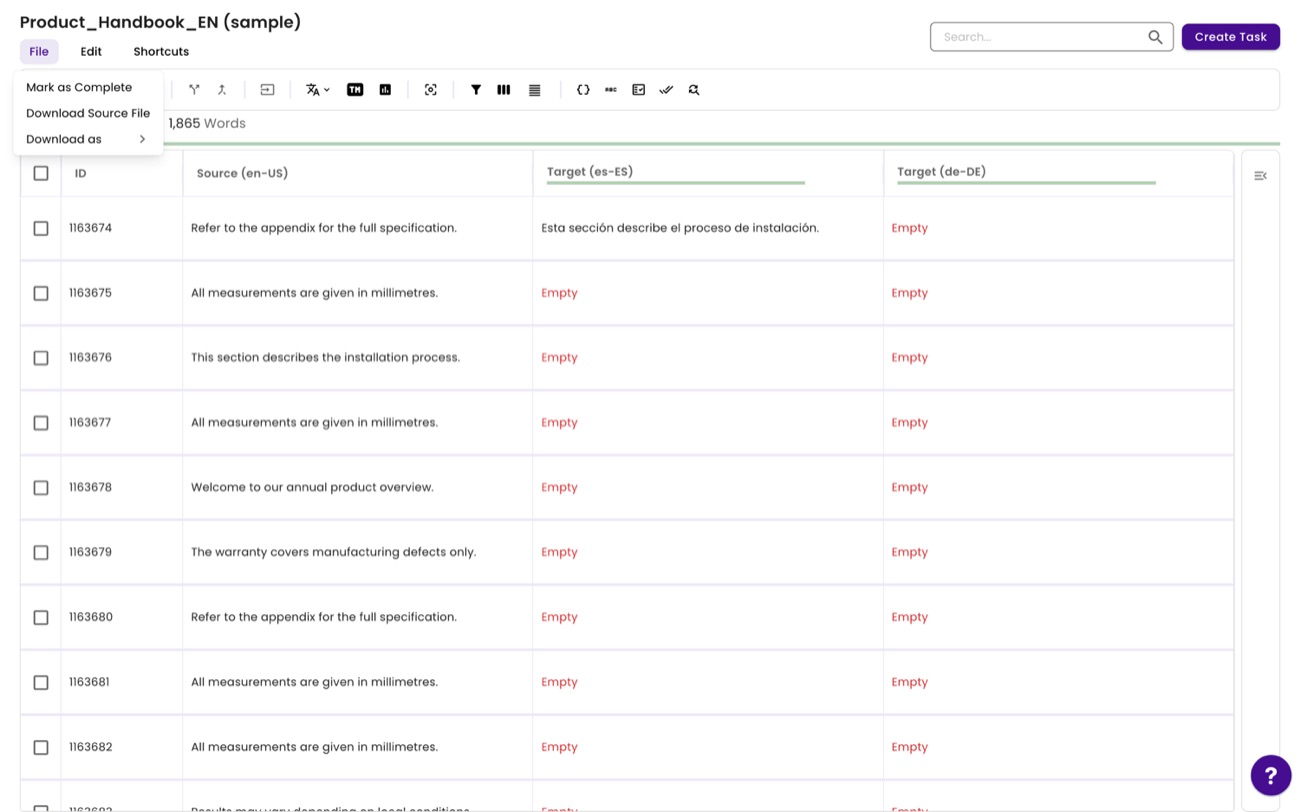
The File menu. Mark as Complete is how a linguist signals the file is done.
Shortcuts. The important ones confirm the segment and move to the next - that single habit is most of the speed difference between a fast linguist and a slow one.
The editor toolbar
Section titled “The editor toolbar”Twenty-one controls sit above the grid, grouped by what they do. Hovering any of them names it.
| Group | Controls | What they are for |
|---|---|---|
| Editing | Undo · Redo · Copy · Paste · Delete | The usual, applied to segment content. |
| Segments | Split Segments · Merge Segments · Insert from source | Fix segmentation the converter got wrong, and copy the source into the target as a starting point. |
| Machine translation | Engine picker | Pre-translate with Microsoft Translator or DeepL. See below. |
| Translation memory | Run TM · Analysis | Match the file against your memories, and see the word count breakdown. |
| View | View Untranslated Segments · Filter · Show Columns · Density | Narrow the grid to what you are working on. |
| Assets | Placeholders · Term Base | Reach the terminology and placeholder tools without leaving the file. |
| Quality | QC Conditions · Confirm Stages | Run the quality checks, and confirm a workflow stage once the work passes. |
| Search | Find and Replace | Change wording across the whole file at once. |
Machine translation
Section titled “Machine translation”Awtomated pre-translates through two engines, and you pick which one per file from the toolbar.
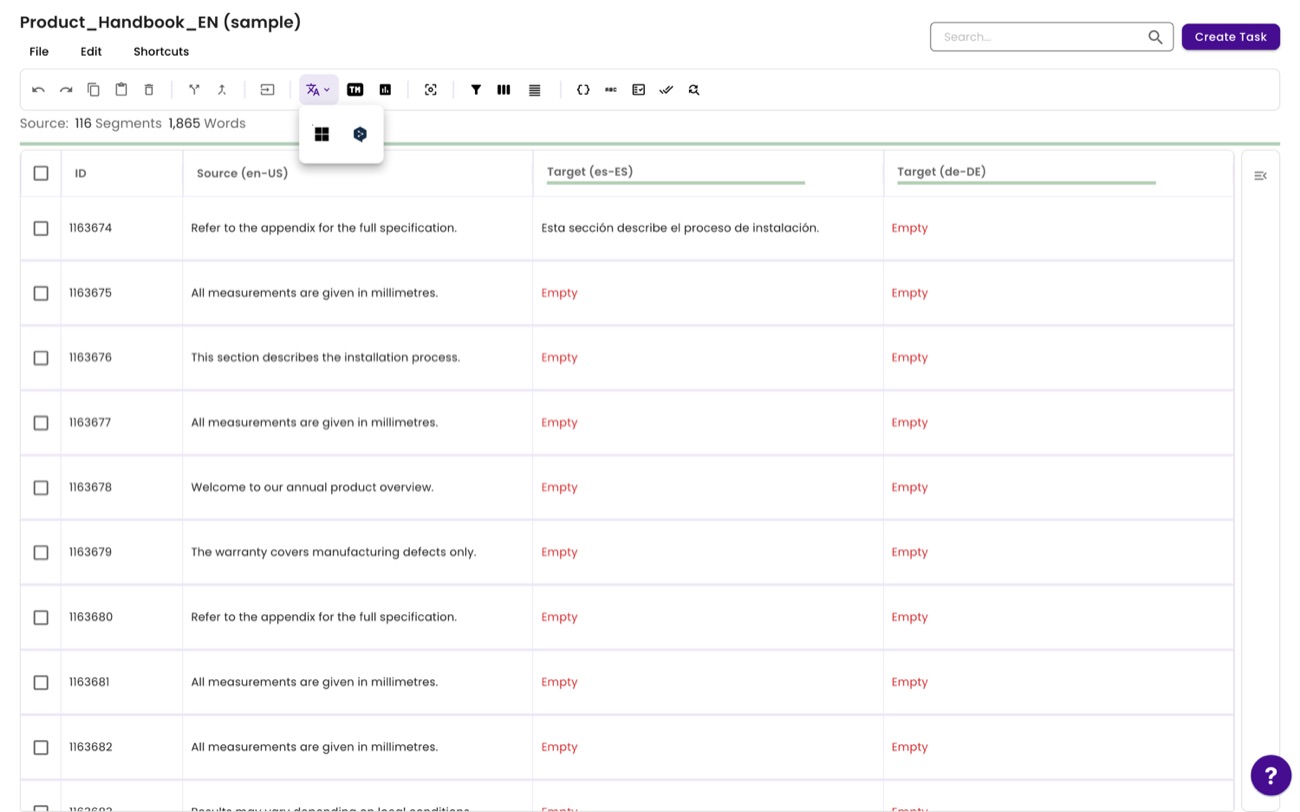
Choosing an engine. Microsoft Translator and DeepL, both configured with your own API keys under Settings › Machine Translations.
QC conditions
Section titled “QC conditions”The quality checks Awtomated runs over a file - 38 of them, in five groups, each switchable.
QC Conditions. Each group shows how many of its checks are enabled - (8/8) means all eight are on.
| Group | Checks | Catches |
|---|---|---|
| Tags & Placeholders | 8 | Inline tags dropped, duplicated or reordered, and placeholder patterns broken in the translation. |
| Glossary & Matches | 5 | Terms translated against the term base, and segments that disagree with a memory match. |
| Formatting, Punctuation & Spacing | 9 | Double spaces, missing end punctuation, mismatched brackets and quotation marks. |
| Length & Subtitle Limits | 5 | Text longer than the space allows. Set a Threshold %, Max characters, Max chars per line and Max lines - the settings that matter for subtitling and UI strings. |
| Capitalization & Language Integrity | 11 | Capitalisation that does not match the source, and text left in the wrong language. |
A Similarity Threshold % applies across the checks, and Apply runs them against the file.
Find and replace
Section titled “Find and replace”Changes wording consistently across every segment - the fix when a client renames a product half way through a job.
Find and Replace. Find in (Columns) limits the search to one language instead of all of them.
| Option | Effect |
|---|---|
| Find in (Columns) | Search every column, or just one - replacing in the source when you meant the German target is hard to undo. |
| Case Sensitive | Distinguishes Pro from pro. |
| Whole Word | Stops a search for art matching inside start. |
| Skip uneditable segments | Leaves locked or confirmed segments alone. |
| Find / Replace / Replace All | Step through matches one at a time, or change them all at once. |
Terminology, placeholders and the view controls
Section titled “Terminology, placeholders and the view controls”The Term Base and Placeholders buttons open their panels beside the grid, each offering Create new Termbase or Create new Placeholder - so terminology can be captured while translating rather than noted for later.
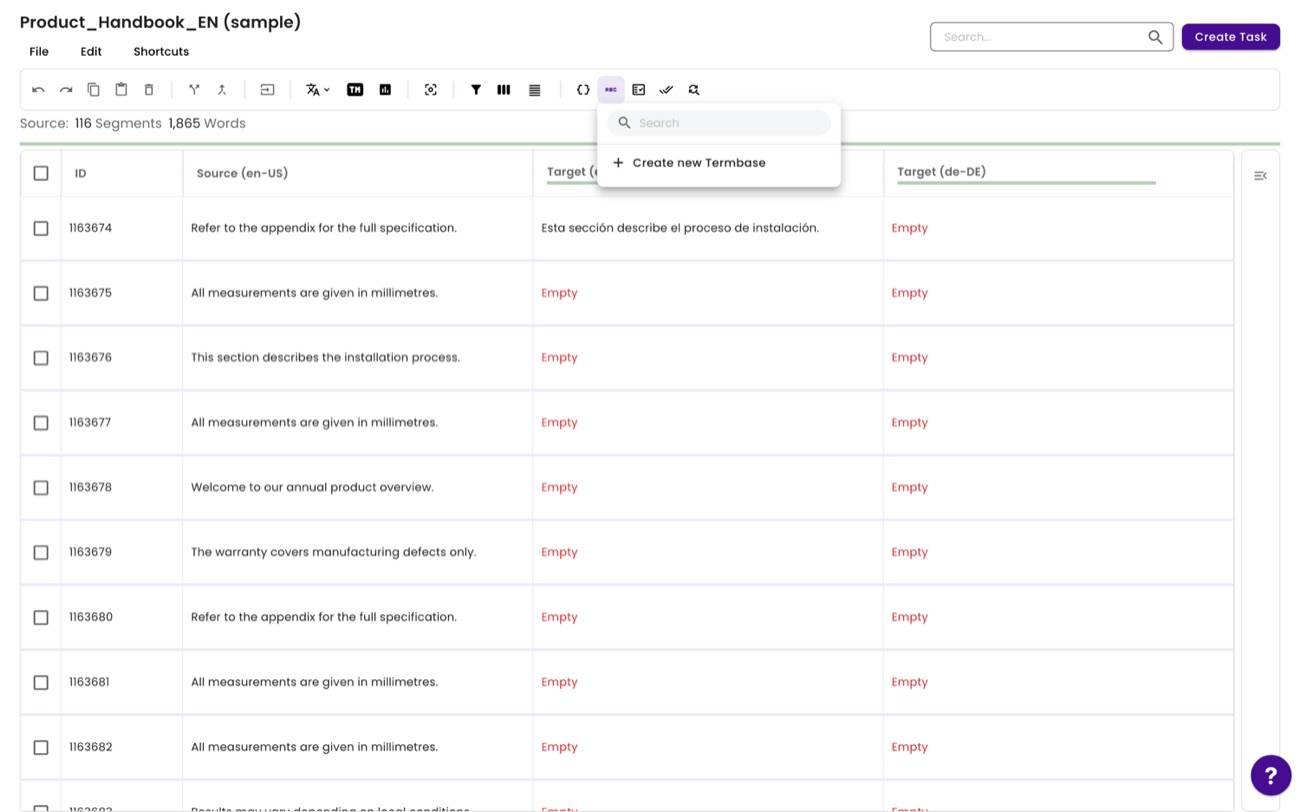
Term Base panel. Add a term the moment it is agreed, and it applies to the rest of the file.
| View control | Does |
|---|---|
| View Untranslated Segments | Hides everything already done, leaving only what is outstanding. |
| Filter | Narrows the grid by segment state. |
| Show Columns | Hides target languages you are not working on - useful on a file with six of them. |
| Density | Compact, Standard or Comfortable row height. Compact suits review, comfortable suits long segments. |
Pricing a project
Section titled “Pricing a project”Where: Project record › Finance
The Finance tab is where a project becomes a number. Line items describe what is being charged, and they can be built by hand or pulled from your rate card.
Project finance. Columns cover service, description, source and target, units, quantity, unit type, unit price and amount.
- Check the currency. Global Rates shows which currency this project is priced in.
- Select Add Row From Rates to pull a line straight from your rate card, so the price matches what you agreed for that service and language pair.
- Or select Add Empty Row to enter a one-off charge by hand.
- Set the quantity. Use the word counts from the Files analysis so the figure reflects the real document.
- Check the amount. Awtomated multiplies quantity by unit price for each row.
Add Row From Rates keeps project pricing and your rate card in step, instead of retyping prices per job.
Linking assets to a project
Section titled “Linking assets to a project”Where: Project record › Assets
Attach the linguistic resources a job should use: term bases, translation memories and placeholders. Linking them here is what makes them available to the people working the task.
Project assets. Create New makes a fresh asset; Link Termbase attaches one you already have.
Tasks, time and history
Section titled “Tasks, time and history”| Tab | What it shows |
|---|---|
| Tasks | Every task belonging to this project, with the same columns as the main task list. |
| Time Log | Hours logged against the project, with Log Time to add more. |
| Activities | A dated audit trail - who created the project and every change since, by user ID and name. |
Activities. Each entry names the user by ID and what they changed, which settles “who moved this to Done” questions.
Related: Choosing which tabs show · Files & word count analysis · Pricing a project