

Requesting a new project
Where: Client portal › Projects › Create
You do not have to email your provider to start a job. Create on your projects list opens a request form, and what you submit lands directly in their system with its languages, dates and files already attached.
The one thing to understand before you start: the form changes depending on the service you pick. Your provider builds a different set of questions for each thing they sell, so a document translation asks about files and industries, while a conference interpreting job asks about venues and equipment. Choose the service first and the right questions appear.
Step by step
Section titled “Step by step”- Open Projects and select Create at the top right. A Create New Project window opens with a single field.
- Choose the Service. This is the only field shown at first, and it is required - the note underneath reads “The form will load based on the service you choose”. Select it to see everything your provider offers.
- Wait for the rest of the form to appear. It rebuilds itself around your choice, which takes a second or two.
- Give the job a name. Project Name (or Event Name on an interpreting service) is required and is what your provider sees first in their list, so make it specific - Q4 investor report, EN→DE beats translation.
- Set the languages. Pick the Source Language you are supplying and the Target Language you need. A Recent: row of shortcuts sits under each one - the pairs you last used, one select away.
- Attach your files. Drag them onto the Attachments box or select it to browse. Sending the real files now is what lets your provider count the words and quote accurately.
- Set your dates. Start Date and End Date arrive prefilled a week apart. Change the end date to your actual deadline rather than leaving the default.
- Fill in anything else the service asks for - a description, an industry, a location, or the event details on an interpreting job.
- Select Submit. The request appears in your list at status Request straight away, and your provider is notified. Cancel discards it.
Step 2 - pick the service. The list holds everything your provider sells. Nothing else is asked until you choose, because your answer decides which questions follow.
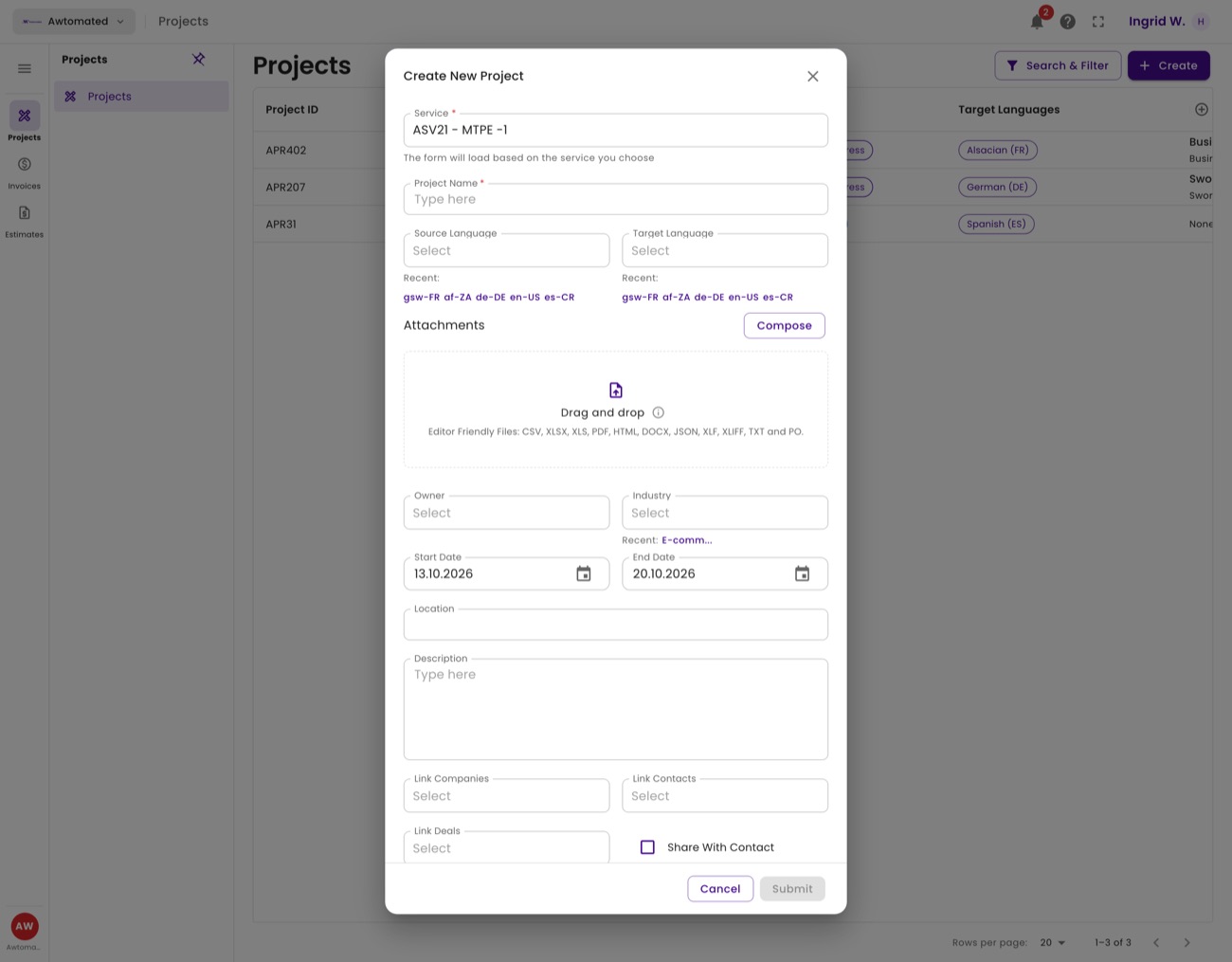
A translation request, fully loaded. Required fields carry a red asterisk, and Submit stays greyed out until they are filled.
| Field | What to put in it |
|---|---|
| Service * | What you need done. Decides every field below it. |
| Project Name * | A specific title. This is the label your provider works from. |
| Source / Target Language | What you are sending, and what you need back. Use the Recent: shortcuts for pairs you order often. |
| Attachments | The files themselves. Drag and drop, or select to browse. |
| Start / End Date | Prefilled a week apart - set the end date to your real deadline. |
| Owner, Industry | Optional context. Industry helps your provider assign a specialist. |
| Location | Where the work applies, for on-site or market-specific jobs. |
| Description | The brief: what the material is, who reads it, anything unusual. Worth the extra minute. |
| Link Companies / Contacts / Deals | Optional. Ties the request to records you already share with your provider. |
A different service asks different questions
Section titled “A different service asks different questions”Pick an interpreting service instead and the form changes completely - no attachments, and a set of event questions in their place.
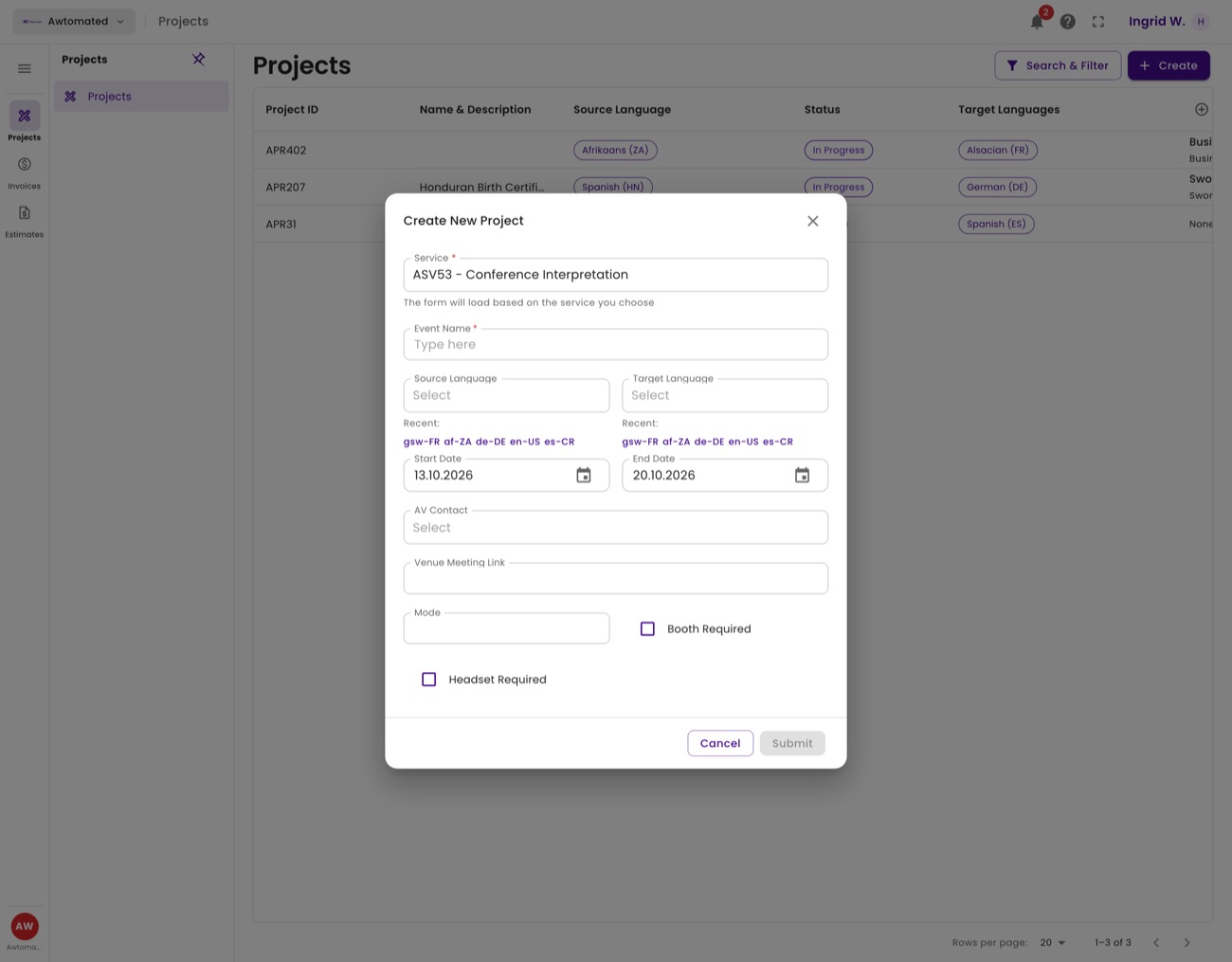
A conference interpreting request. Event Name replaces Project Name, and the form asks for an AV Contact, a Venue Meeting Link, the Mode, and whether a Booth or Headset is required.
Related: It appears in your projects · You receive an estimate · Then an invoice