

Forms
Where: Settings › Forms
Form templates capture the information a particular kind of job needs. A court interpreting assignment requires different details from a document translation, and templates keep each request complete.
Forms. Separate template sets exist for Project and Task, shown as tabs.
Templates in a typical workspace cover court, medical, conference, business meeting and school interpretation alongside standard translation. Create your own with Create Template, and assign it so the right team sees it.
Building a form template, step by step
Section titled “Building a form template, step by step”A form template decides what Awtomated asks for when someone creates a project or task for a given service. This is how the court interpreting form above came to differ from the translation one.
- Go to Settings › Forms and select Create Template.
- Choose Project or Task. Project templates drive the Create New Project dialog; task templates drive task creation.
- Name the template. It opens as Untitled Template - select the title to rename it. A template cannot be saved without a name.
- Assign it to services. Use the Services field in the Form Preview panel. Whenever someone picks one of those services, this is the form they get.
- Add fields with the + in the Field Settings panel. At least one field is required.
- Arrange the form. Add a Form Break where you want the form split into sections.
- Set its state. Active makes it usable; Set as Default makes it the fallback for services with no template of their own.
- Select Save. The template takes an
AFTID and appears in the Forms list against the services you assigned.
Step 2. Project and task templates are maintained separately, as the two tabs on the Forms page show.
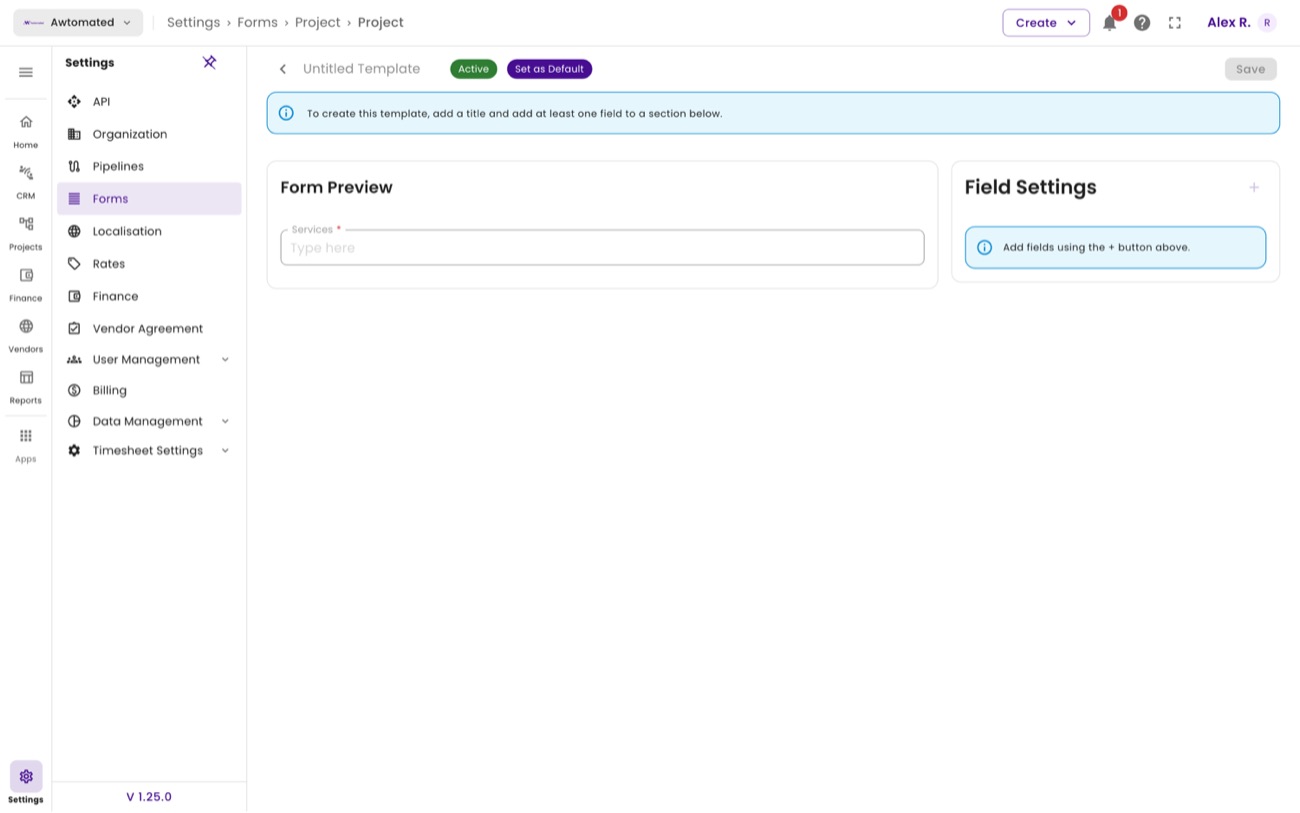
The builder. Form Preview on the left shows what your team will see; Field Settings on the right is where you add to it.
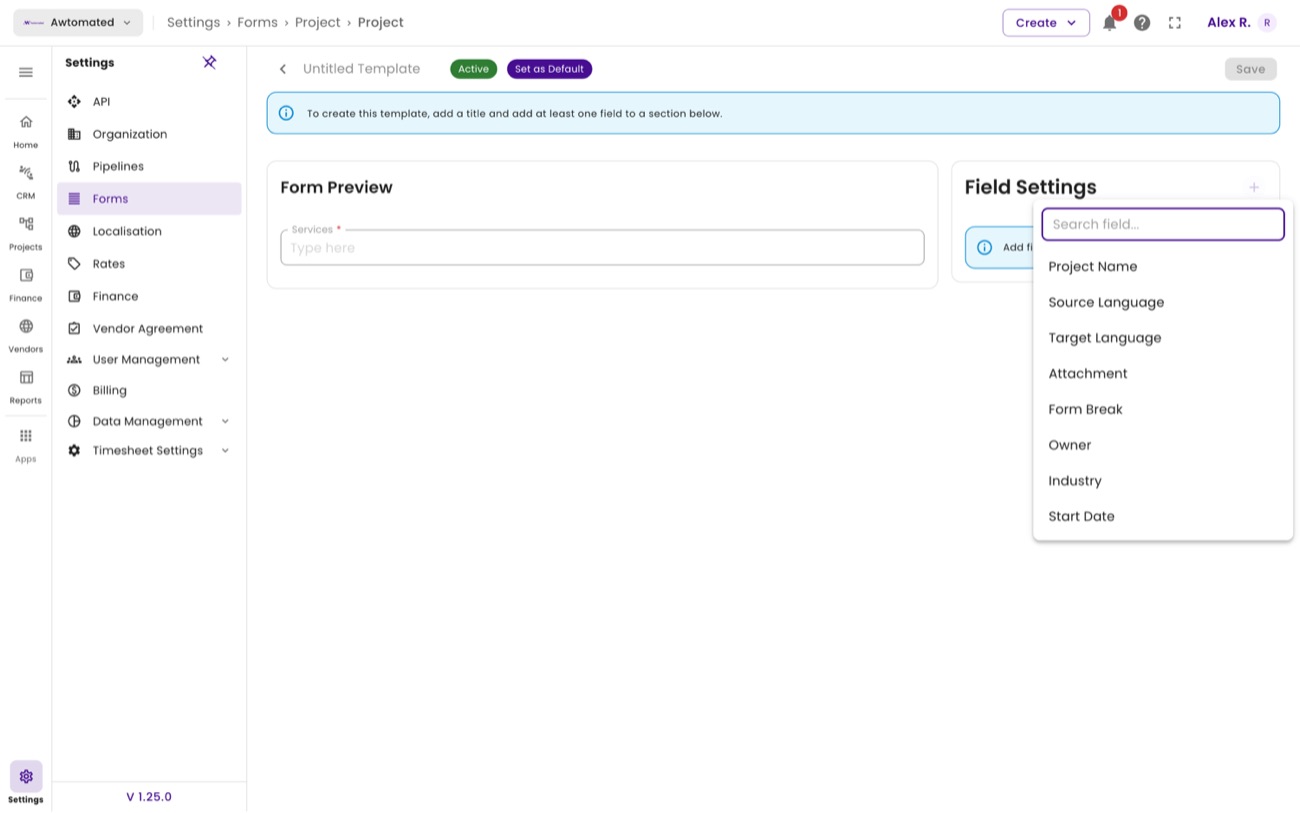
Step 5. The field palette, including the interpretation-specific fields.
Fields you can add
Section titled “Fields you can add”| Group | Fields |
|---|---|
| Core | Project Name · Description · Owner · Industry · Start Date · End Date · Location · Reference ID |
| Language | Source Language · Target Language · Volume · Tool Type · Machine Translation |
| Files | Attachment |
| Links | Link Companies · Link Contacts · Link Deals · Share with contact |
| Interpreting | Meeting Type · Medical Specialty · LEP Party Role |
| Layout | Form Break - splits the form into sections |
Related: Building a form template · Creating a project · Services & unit types
Task form templates
Section titled “Task form templates”Forms likewise splits into Project and Task. Task templates drive what is asked when a task is created, and carry their own AFT IDs and service assignments.
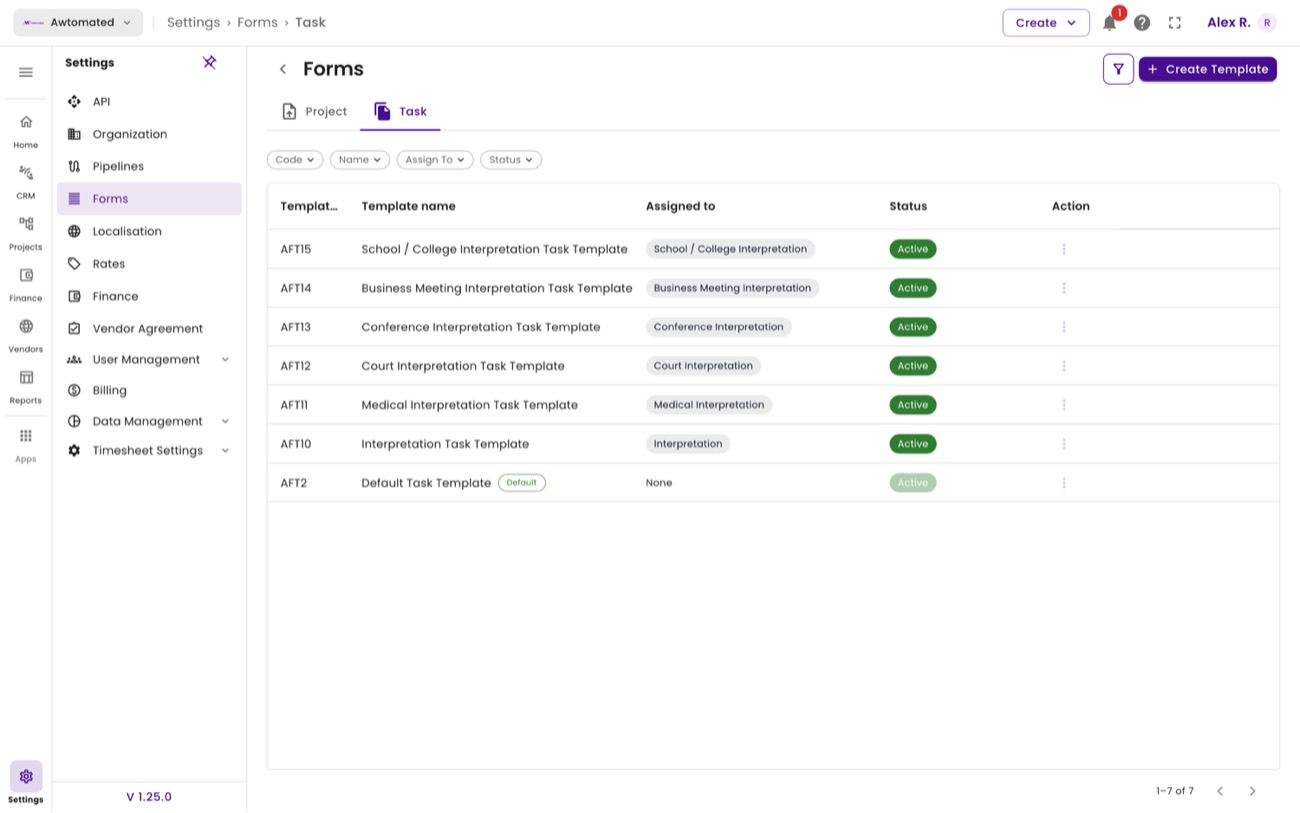
Task templates. Built in the same template builder as project forms - choose Task at the first step.