

Invoice and payout settings
Where: Settings › Finance
The rules governing how money documents are produced: when vendors may invoice you, the currency thresholds that apply, and how invoices and estimates look.
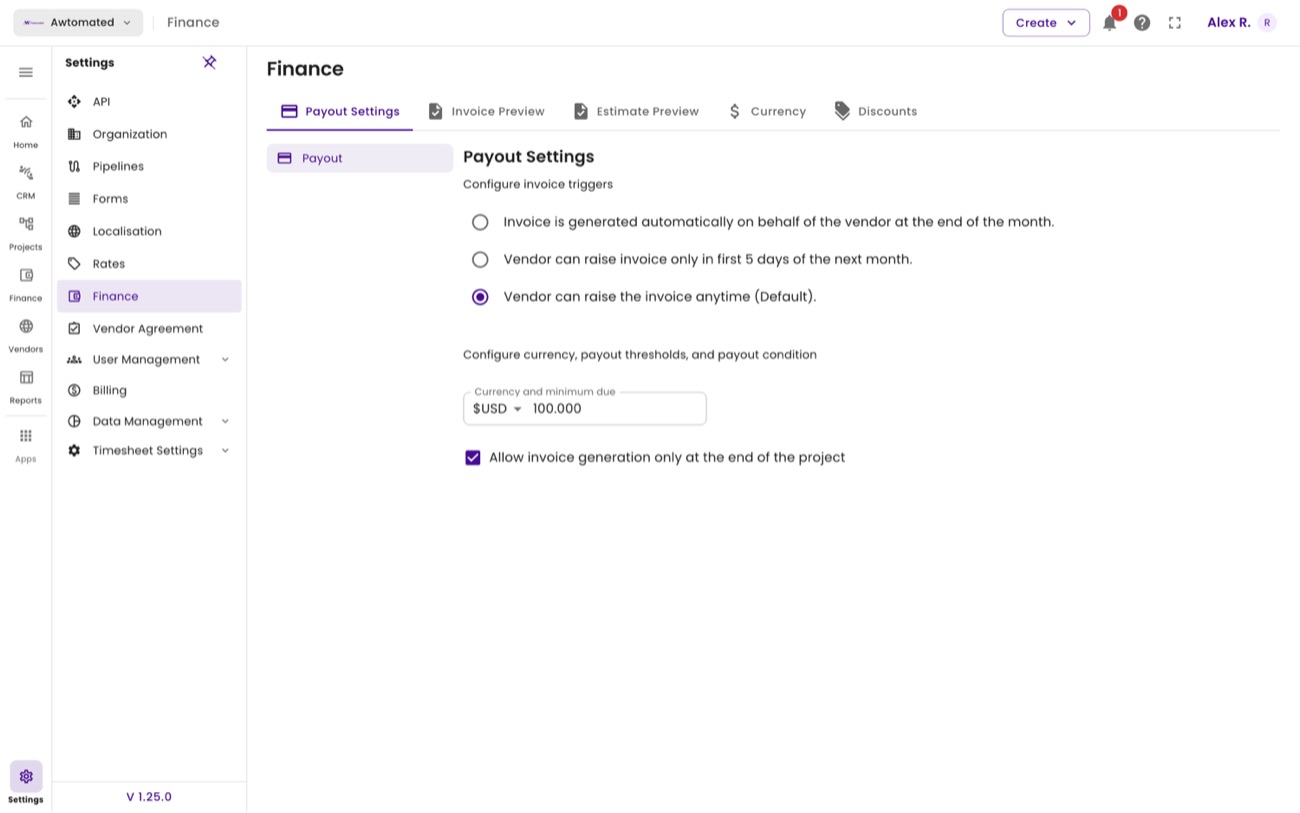
Finance settings. Tabs cover payout settings, invoice and estimate previews, currency and discounts.
Choosing when vendors can invoice
Section titled “Choosing when vendors can invoice”| Option | What happens |
|---|---|
| Automatic at month end | Awtomated generates the invoice on the vendor’s behalf at the end of each month. |
| First five days only | Vendors may raise an invoice only during the first five days of the following month, which keeps your month-end close predictable. |
| Any time (default) | Vendors invoice whenever they choose. |
You can also set a currency and minimum amount due before a payout is released, and require that invoices are generated only once a project is complete.
Related: Payouts · Per-vendor settings · How a vendor invoices you
Currency
Section titled “Currency”Where: Settings › Finance › Currency
Sets the currency the workspace works in. It is the default applied to new estimates and invoices, and the base every other currency converts against on a document that shows a second total.
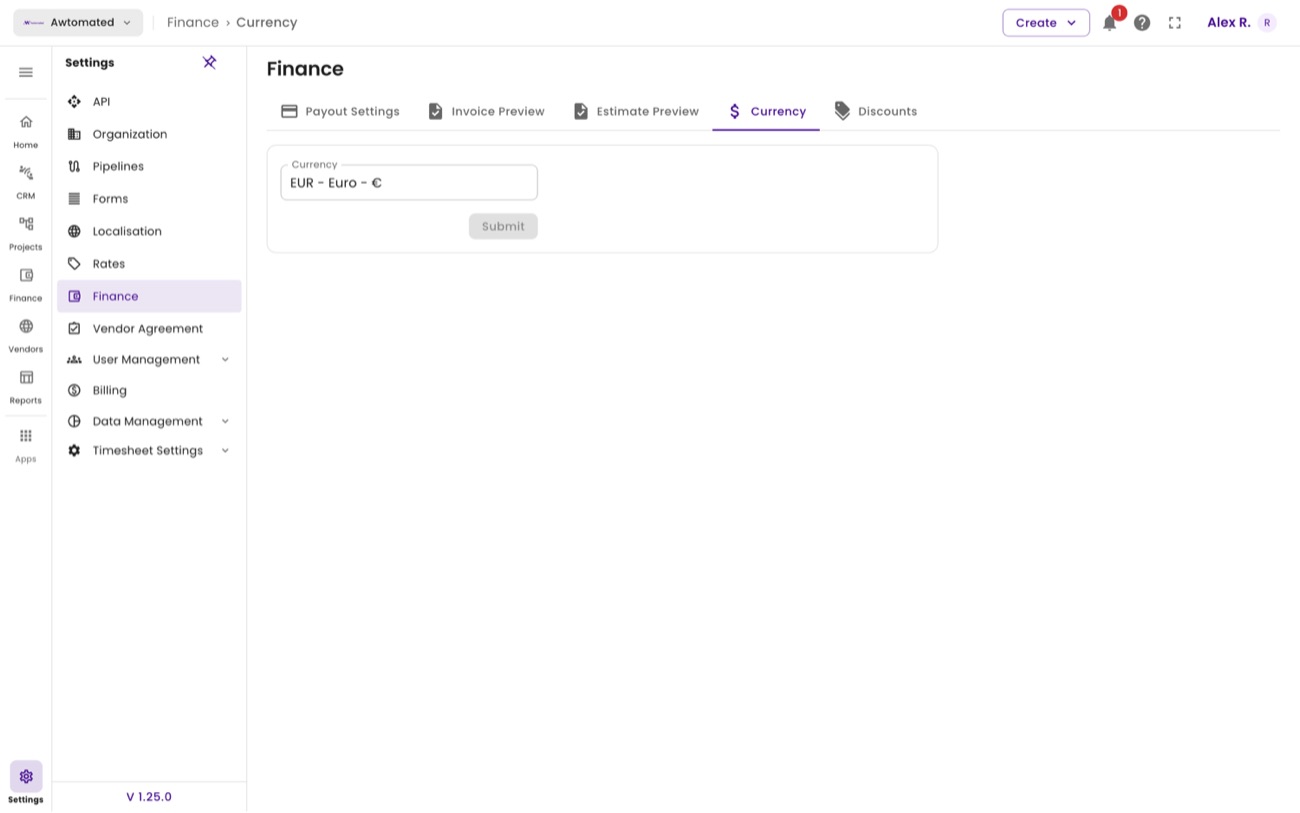
Currency. One selector, then Submit.
Discount profiles
Section titled “Discount profiles”Where: Settings › Finance › Discounts
A discount profile is a reusable reduction you can apply to documents rather than retyping the same percentage per invoice.
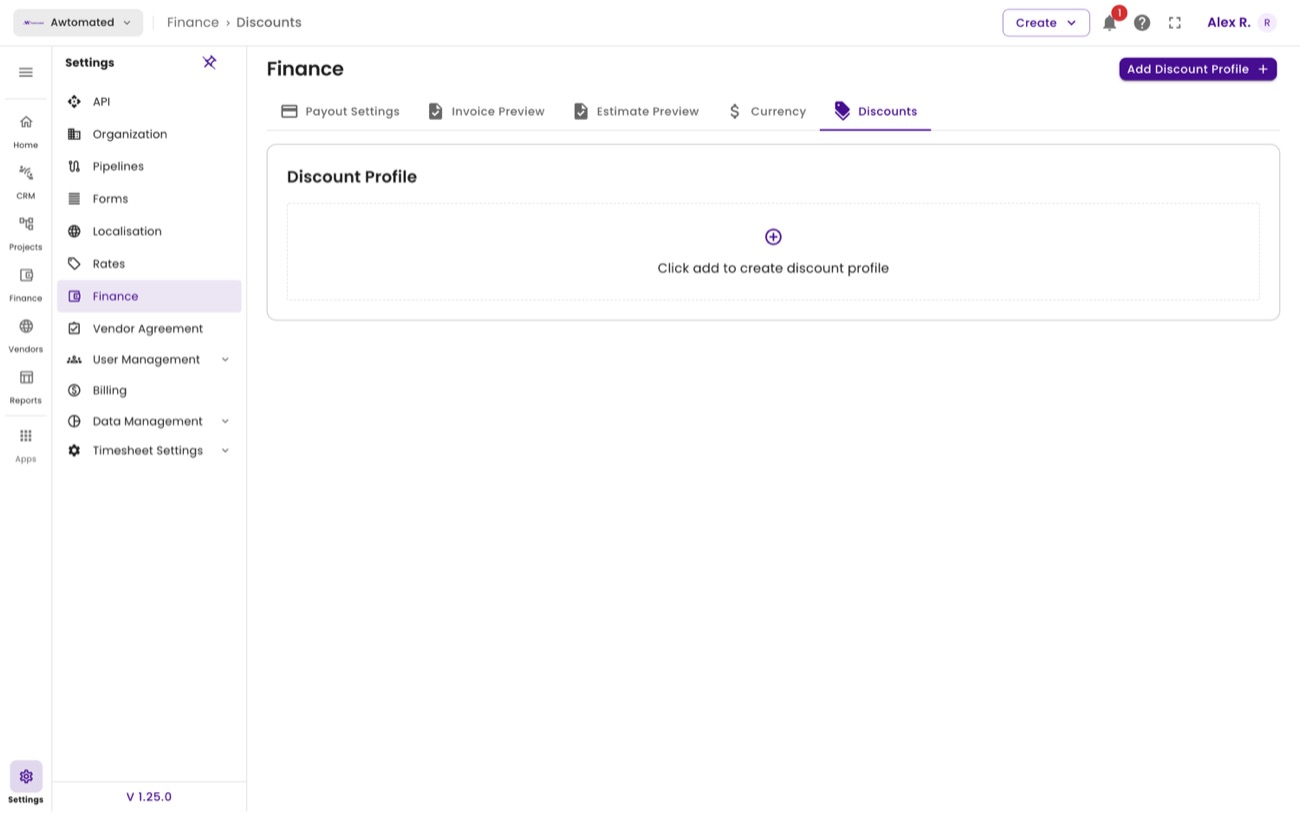
Discounts. Empty until you create one - Click add to create discount profile.
- Go to Settings › Finance and select the Discounts tab.
- Select Add Discount Profile.
- Name the profile and set its reduction - name it for the reason it exists, such as Volume 10% or Agency partner, so whoever applies it later knows when it is appropriate.
- Save. The profile becomes selectable on estimates and invoices.
Invoice and estimate previews
Section titled “Invoice and estimate previews”Where: Settings › Finance › Invoice Preview and Estimate Preview
These two tabs show exactly what your client receives, rendered with sample data. Each has a Preset selector for switching layout.
Invoice Preview. Your organisation details, the client block, line items and totals, laid out as the client will see them.
Estimate Preview. The same for quotes, including the valid date.